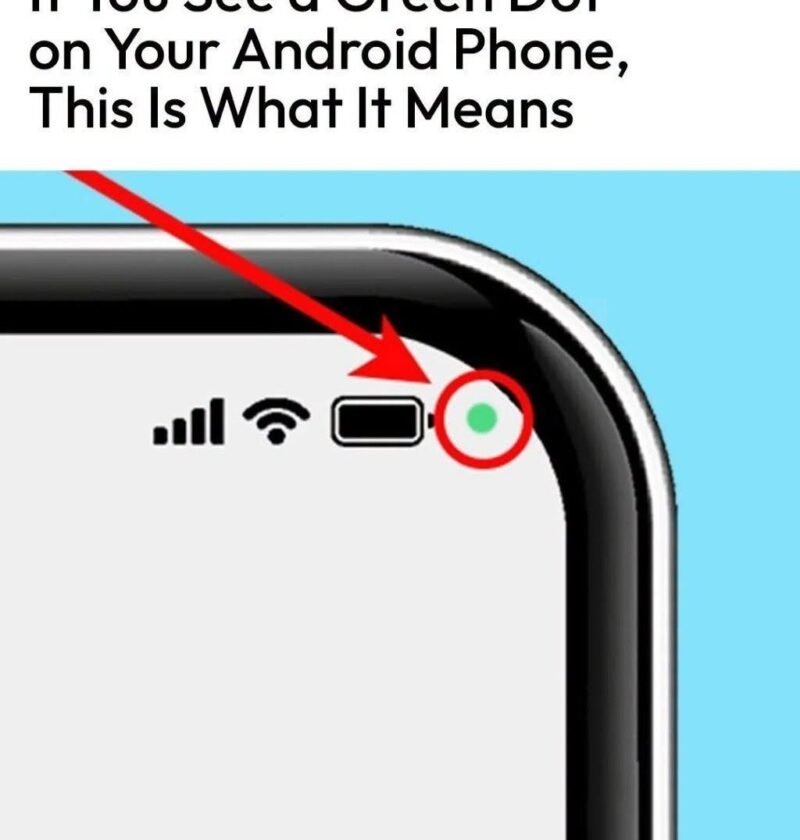
What It Means (and Why It Appears)
-
Normal activity: You will see it whenever you take a photo, record a voice note, join a video call, use voice typing, or trigger a voice assistant (“Hey Google”).
-
Background check: If the dot pops up while you are just reading an article or sitting on the home screen, an app is accessing your mic or camera in the background without an obvious reason.
How to See Exactly Which App Is Using It
-
Swipe down from the top of your screen to open the Quick Settings shade.
-
Tap the green dot (or the green camera/microphone pill icon) in the top-right corner.
-
A pop-up will immediately show which sensor is active (Camera, Microphone, or Location) and which app is currently using it.
What to Do If an App Uses It Unexpectedly
-
Revoke unnecessary permission: Tap the app name in the privacy pop-up (or go to Settings > Apps > [App Name] > Permissions) and switch Camera or Microphone from Allow to Ask every time or Don’t allow.
-
Use Quick Settings kill switches: Swipe down twice to expand Quick Settings and look for the Camera access and Mic access tiles—tapping them blocks every app on the phone from using those sensors until you turn them back on.
-
Watch for lookalike apps: If a flashlight, wallpaper, or simple calculator app triggers the microphone or camera, uninstall it and run a scan in Google Play Store > Profile icon > Play Protect.